Power and Thermal Optimization: Managing the Physical Limits
A high-end workstation has a 1000W power supply and liquid cooling. A battery-powered drone has a 50Wh power bank and a passive aluminum heat sink. In the world of desktop AI, we optimize for Latency. In the world of embedded AI, we optimize for Energy per Inference.
If your Vulkan ML engine draws 15W, your drone falls out of the sky in minutes. If you can optimize it to 3W, you have a 3-hour mission. Power optimization isn’t just about "saving money"—it’s about enabling Impossible Missions.
In this chapter, we will learn how to measure and minimize the energy consumption of our pipeline. We will explore DVFS, Duty Cycle Management, and the math of Thermal PID Control.
The Physics of Power: Joules per Inference
To a power engineer, an ML "Inference" is just a burst of current. The total energy consumed depends on both how much power the GPU draws and how long it stays "awake" to finish the job.
The "Cubic" Power Rule
Dynamic power in a CMOS circuit (like a GPU) is defined by the switching of logic gates.
Where: * : Activity Factor (Percentage of transistors flipping each cycle). * : Capacitance (Fixed by the chip’s design). * : Voltage (Supply voltage). * : Frequency (Clock speed).
The Trap: As you increase frequency ( ), you must also increase voltage ( ) to ensure the transistors can switch fast enough to keep up. Since Power depends on , and is roughly proportional to , the total power consumption increases cubically with clock speed. Double the frequency, and you might see an increase in power draw.
Static vs. Dynamic Power
-
Dynamic Power: Power spent while the GPU is actively crunching numbers.
-
Static (Leakage) Power: Power spent just keeping the silicon powered on. This is caused by sub-threshold leakage current through the transistor gates.
As chips get smaller (e.g., from 28nm to 5nm), static leakage becomes a much larger percentage of the total power budget. This is why "just slowing down" isn’t always the best strategy. If you slow down the GPU by 2x, you might save dynamic power, but the chip stays "awake" twice as long, doubling the total energy lost to static leakage.
The "Race to Sleep" Strategy
Modern SoCs are designed to enter extremely low-power "Sleep" states (C-states) where leakage is minimized by turning off entire power domains.
-
Strategy A (Slow and Steady): GPU runs at 200MHz for 100ms. The SoC remains in an active state for the full duration.
-
Strategy B (Race to Sleep): GPU runs at 800MHz for 20ms. The chip finishes the work faster and enters a "Deep Sleep" state for the remaining 80ms.
The Math: Race to Sleep wins if the energy spent during the 800MHz burst is less than the energy saved by allowing the SoC to sleep for those 80ms. In Vulkan, we enable this by submitting all command buffers in one go and using vkWaitForFences with a non-zero timeout to yield the CPU thread to the OS scheduler.
Strategy 1: Tuning the GPU Governor (DVFS)
Embedded Linux uses Dynamic Voltage and Frequency Scaling (DVFS) to balance performance. The "Governor" is a kernel thread that decides how fast the GPU should run based on its current load.
The Latency of the Governor
For ML, the default schedutil governor is often too slow. It sees a "Burst" of ML work, waits a few milliseconds to ensure it’s not just a spike, and only then raises the frequency. By the time the GPU is at full speed, your inference is already finished—and was performed slowly at low voltage.
Manual Frequency Pinning
In production, we often "Pin" the frequency during active inference to avoid this "Ramp-up Latency."
# Find the GPU device tree node
cd /sys/class/devfreq/*.gpu/

# List supported frequencies (in Hz)
cat available_frequencies

# Pin to the 'Sweet Spot' (e.g., 600MHz)
echo 600000000 > min_freq
echo 600000000 > max_freq
Expert Tip: Every GPU has an "Efficiency Sweet Spot"—a frequency where the performance-per-watt is maximized. You can find this by measuring the current at different clock speeds and plotting the GFLOPS/Watt curve. Usually, this is around 60% of the maximum clock.
Strategy 2: Duty Cycle Management
In a 30 FPS camera application, you have a 33.3ms budget. If your inference takes 10ms, the GPU is idle for 23.3ms.
-
The Mistake: Busy-waiting on a Vulkan fence (
while(!done);). This keeps the CPU core at 100% and prevents the memory controller from entering low-power states. -
The Pro Way: Use
vkWaitForFences. This triggers a kernel interrupt. The OS can then put the CPU into a deep sleep and lower the DRAM refresh rate, saving up to 1W of total system power.
Strategy 3: Thermal-Aware Inference (The PID Loop)
Embedded devices are Thermally Constrained. If the SoC hits its limit (e.g., 85°C), the hardware will "Hard Throttle"—dropping performance by 50% or more without warning. This causes frame drops and "Jitter."
Newton’s Law of Cooling
The rate of heat loss is proportional to the difference in temperatures.
Where is the power consumed by your Vulkan shaders. If exceeds the dissipation capacity , the device will overheat.
The Thermal PID Controller
To prevent this, we implement a Closed-Loop Software Controller. A PID (Proportional-Integral-Derivative) controller adjusts our "Inference Rate" to keep the temperature at a safe target (e.g., 75°C).
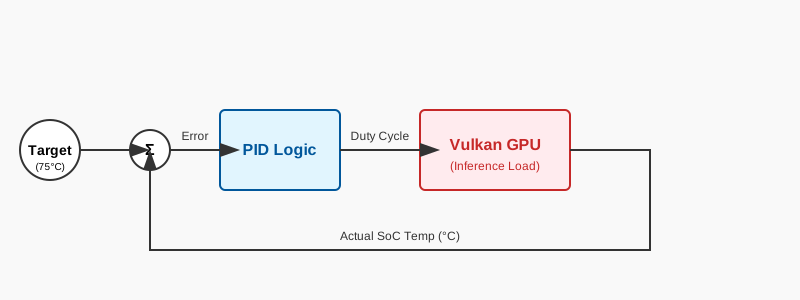
// Advanced Software PID for Thermal Management
struct PIDController {
    float Kp = 0.5f; // Proportional: Reacts to current error
    float Ki = 0.1f; // Integral: Corrects long-term drift
    float Kd = 0.05f; // Derivative: Dampens oscillations

    float integral = 0;
    float prevError = 0;

    float update(float target, float current, float dt) {
        float error = target - current;
        integral += error * dt;

        // Anti-Windup: Limit the integral to prevent runaway
        integral = std::clamp(integral, -10.0f, 10.0f);

        float derivative = (error - prevError) / dt;
        float output = (error * Kp) + (integral * Ki) + (derivative * Kd);
        prevError = error;
        return output;
    }
};

void thermalLoop() {
    PIDController thermo;
    float targetTemp = 75.0f; // Target stable operating temp

    while(running) {
        float currentTemp = readSoCThermalZone(0);
        float adjustment = thermo.update(targetTemp, currentTemp, 1.0f);

        // Output: Adjusted Sleep Interval (ms)
        // If it's too hot, we increase the sleep time between frames
        inferenceSleepMs = std::clamp(inferenceSleepMs - adjustment, 0.0f, 100.0f);

        std::this_thread::sleep_for(std::chrono::seconds(1));
    }
}Strategy 4: Reducing Memory Bandwidth (The Silent Killer)
In most embedded SoCs, moving a byte of data from RAM to the GPU consumes more energy than performing a floating-point operation on that byte. If your shader is "Memory Bound," you are wasting Joules on the memory bus.
Sub-group Operations
Normally, each Vulkan invocation (thread) in a workgroup works in isolation. If four threads need the same piece of data, they might all fetch it from memory separately.
By using Sub-groups (extensions like VK_KHR_shader_subgroup_basic), threads can share data directly within the GPU’s execution units using "Shuffles" or "Swizzles," bypassing the cache and the memory bus entirely.
#extension GL_KHR_shader_subgroup_arithmetic : enable

void main() {
    float val = myData[gl_GlobalInvocationID.x];

    // Instead of every thread writing to RAM to sum values,
    // we use a subgroup operation to sum in registers.
    float groupSum = subgroupAdd(val);

    if (subgroupElect()) {
        // Only one thread writes the result to memory
        outputData[gl_WorkGroupID.x] = groupSum;
    }
}
Bandwidth Compression (AFBC)
Many ARM and Mali GPUs support Arm Frame Buffer Compression (AFBC). This is a lossless compression format that the hardware handles automatically. It can reduce bandwidth by up to 50% for typical camera frames.
To enable this in Vulkan, you must use the VK_EXT_image_compression_control extension or ensure your image tiling is set to OPTIMAL and the driver supports AFBC for that format.
Strategy 5: CPU Affinity and Interrupts
On a "Big.LITTLE" ARM processor (like those in the Pi 5 or Snapdragon), not all CPU cores are created equal.
-
Big Cores: High performance, high power draw.
-
LITTLE Cores: Low performance, extremely high efficiency.
For the "Manager" thread of your Vulkan ML engine, you should pin it to a LITTLE core. The manager thread spends most of its time waiting for the GPU; there is no need to keep a power-hungry Big core awake just to handle a Vulkan interrupt.
// Pinning the ML Manager thread to Core 0 (usually a LITTLE core)
cpu_set_t cpuset;
CPU_ZERO(&cpuset);
CPU_SET(0, &cpuset);
pthread_setaffinity_np(mlThread.native_handle(), sizeof(cpu_set_t), &cpuset);
Case Study: The 1-Watt Inference Challenge
Imagine you are building a wildlife camera that must run on a small solar panel. Your total power budget for the AI is exactly 1 Watt.
| Component | Budget (Watts) | Strategy |
|---|---|---|
Idle System |
0.4W |
Minimal OS (Alpine/Buildroot) |
Camera Sensor |
0.2W |
Low frame rate (5 FPS) |
ML Inference |
0.4W |
The Goal |
To hit the 0.4W goal for ML: 1. Extreme Quantization: Use 4-bit weights (INT4) if the GPU supports it. 2. Skipping Frames: If the camera detects no movement (using a cheap PIR sensor), the GPU stays in Deep Sleep. 3. Frequency Undervolting: Pushing the GPU frequency to the absolute minimum required to hit 5 FPS.
Energy-Aware Shaders: Measuring
The activity factor ( ) represents the percentage of the GPU’s transistors that are flipping each cycle. In a shader, this is determined by how many Multiply-Accumulate (MAC) operations you perform vs. how much data you load.
-
High : High-density matrix multiplications (FP32). These consume the most power per second but are highly efficient per inference.
-
Low : Sparse memory-bound tasks (ReLU, Max Pooling). These consume less power but keep the memory bus active.
To optimize power, move your workload toward lower bit-widths. Moving from FP32 to INT8 reduces the number of bits flipped in every ALU operation by 75%. This is why quantization is the single most effective power-saving technique in embedded ML.
Summary: The Power Optimization Checklist
-
Measure the Rails: Use internal sensors (like
jtoporvcgencmd) to calculate real-time . -
Quantize to INT8: Reducing precision reduces bit-flips, saving Joules per op.
-
Use Timeline Semaphores: They allow the GPU to manage its own internal dependencies without waking up the CPU.
-
Yield the Thread: Never loop on
vkGetFenceStatus. Let the OS sleep the thread. -
Soft-Throttle: Use a PID loop to stay below the silicon’s thermal trip point.
By mastering the physical limits of your hardware, you turn your code from a "battery killer" into a surgical tool capable of running for days on a single charge.
Next, we will bring everything together into a Complete Embedded Application.